Data & Backups
NalamDesk takes data security seriously. We employ a Privacy-First, Local-First architecture. This means your patient data resides on your device, encrypted, and is never sent to our servers.
Local Backups
NalamDesk automatically creates an encrypted backup of your database every day at the time configured under Settings > Data & Backup > Local Backup Schedule (default 1:00 PM). The app must be open at that time for the backup to run.
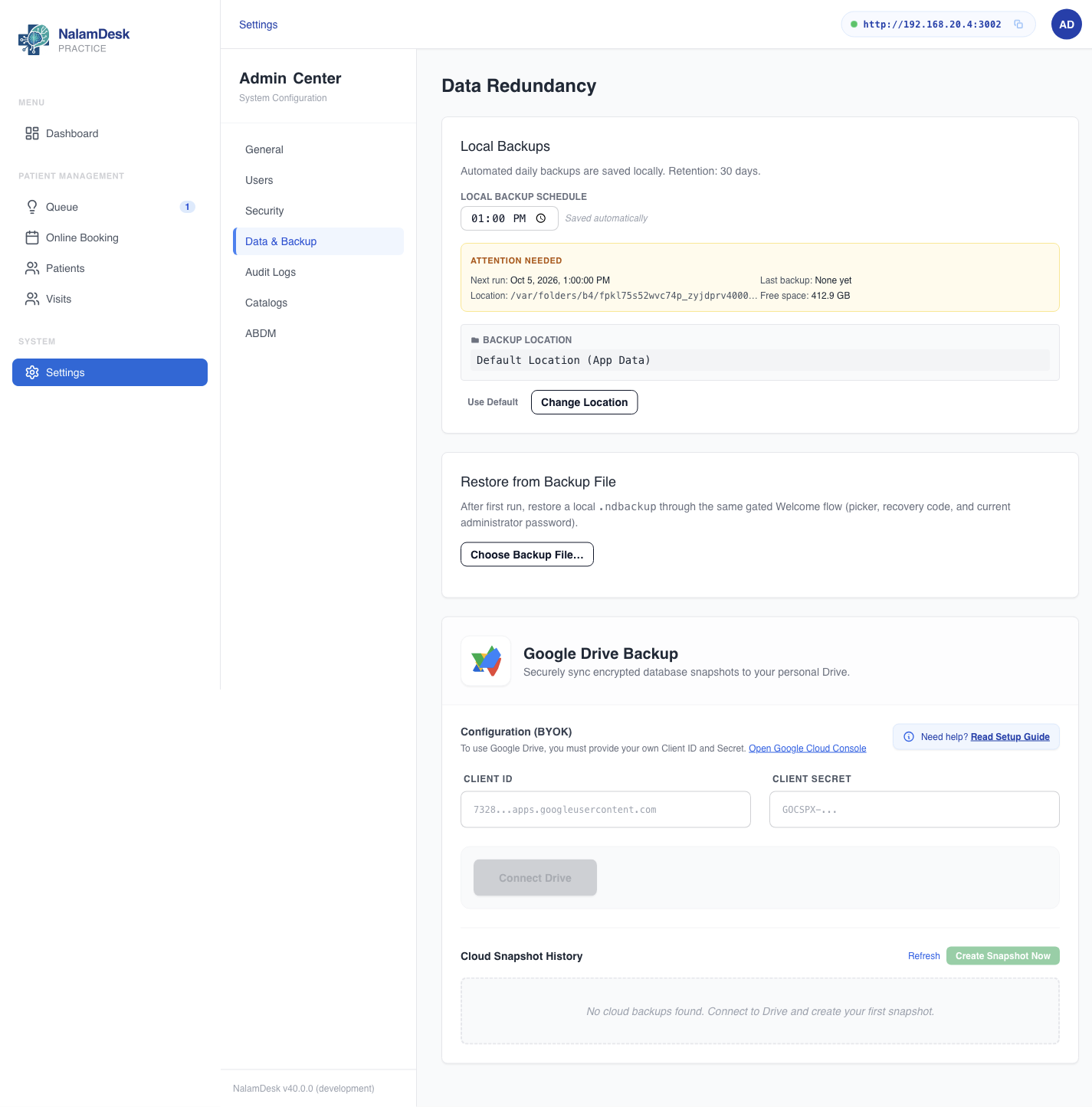 Backup schedule, health, location, restore, and Drive sync live under Settings, Data and Backup.
Default Backup Location
Unless you configure a custom location, backups are stored in the application data folder:
- Windows:
C:\Users\<YourUser>\AppData\Roaming\NalamDesk\backups - macOS:
/Users/<YourUser>/Library/Application Support/NalamDesk/backups - Linux:
/home/<YourUser>/.config/nalamdesk/backups
Retention Policy
Local backups are retained for 30 days. Older backups are automatically deleted to save space.
Changing Backup Location
- Go to Settings > Data & Backup.
- Click Change Location under the Local Backups section.
- Select your preferred folder (e.g., an external hard drive or a specific document folder for easier access).
Backup Health
The Data & Backup screen reports backup health derived from the backup files on disk: when the last backup ran and whether anything needs attention. A Run backup now action is offered when a problem is found.
Restoring a Local Backup
- Go to Settings > Data & Backup > Restore from Backup File (the same picker is available on the Welcome screen before login).
- Click Choose Backup File… and pick a
.ndbackupfile. - Enter the Recovery Code and the current administrator password. Both are required. There is no reset path: a lost recovery code means the backup cannot be restored.
- Click Restore Vault. The app restarts with the restored data.
Cloud Backups (Google Drive)
For off-site redundancy, you can sync your backups to your personal Google Drive. NalamDesk uses a Bring Your Own Key (BYOK) model, giving you full control over the connection and ensuring we cannot access your Drive.
Setup Guide
Step 1: Create a Google Cloud Project
- Go to Google Cloud Console.
- Click Select a Project > New Project.
- Name it
NalamDesk Backupand click Create.
Step 2: Enable Google Drive API
- On the left sidebar, go to APIs & Services > Library.
- Search for
Google Drive APIand click Enable.
Step 3: Configure OAuth Consent Screen
- Go to APIs & Services > OAuth consent screen.
- Select External (for personal use) and click Create.
- Fill in required fields:
- App Name: NalamDesk Backup
- User Support Email: Your email
- Developer Contact Info: Your email
- Click Save and Continue.
- Scopes: Add
.../auth/drive.file. - Test Users: Add your own Gmail address.
Step 4: Create Credentials
- Go to APIs & Services > Credentials.
- Click Create Credentials > OAuth client ID.
- Application Type: Select
Desktop app. - Name:
NalamDesk Desktop Client. - Click Create.
- Copy the Client ID and Client Secret.
Step 5: Connect NalamDesk
- Open NalamDesk > Settings > Data & Backup.
- Paste your Client ID and Client Secret.
- Click Connect Drive and approve the permissions in the browser window.
Once connected, NalamDesk will upload the daily encrypted backup to a hidden appDataFolder in your Google Drive, ensuring it doesn't clutter your main Drive view.