Clinic Operations
Daily workflows for receptionists, nurses, and doctors: registration, queue and triage, vitals, and consultations. Everything below works offline.
Patient Registration (Receptionist)
- Navigate to Patients.
- Click Add Patient.
- Enter details. Required: Name (at least 3 characters), Mobile (10 digits), Age (0–110), Gender (Male, Female, Other, Unknown). Optional, under collapsed sections: blood group, email, street address, city, state, 6-digit PIN code, emergency contact, and insurance details.
- Date of birth: pick a date and age fills in automatically, or type the age directly and mark DOB as estimated.
- Every patient gets an MRN (medical record number,
ND-000001style) automatically. Use it to identify charts precisely. - The form warns about Possible existing records (matched by MRN, name + birth date, name, or phone) without blocking you. Click Open on a candidate to check its chart before saving a duplicate.
- Choose how to finish:
- Save only: registers the chart and stays on the list.
- Save & Add to Queue: registers and walks the patient into today's queue at Routine priority in one step.
If a duplicate slips through, merge the charts later instead of deleting one. See Merging Duplicate Charts.
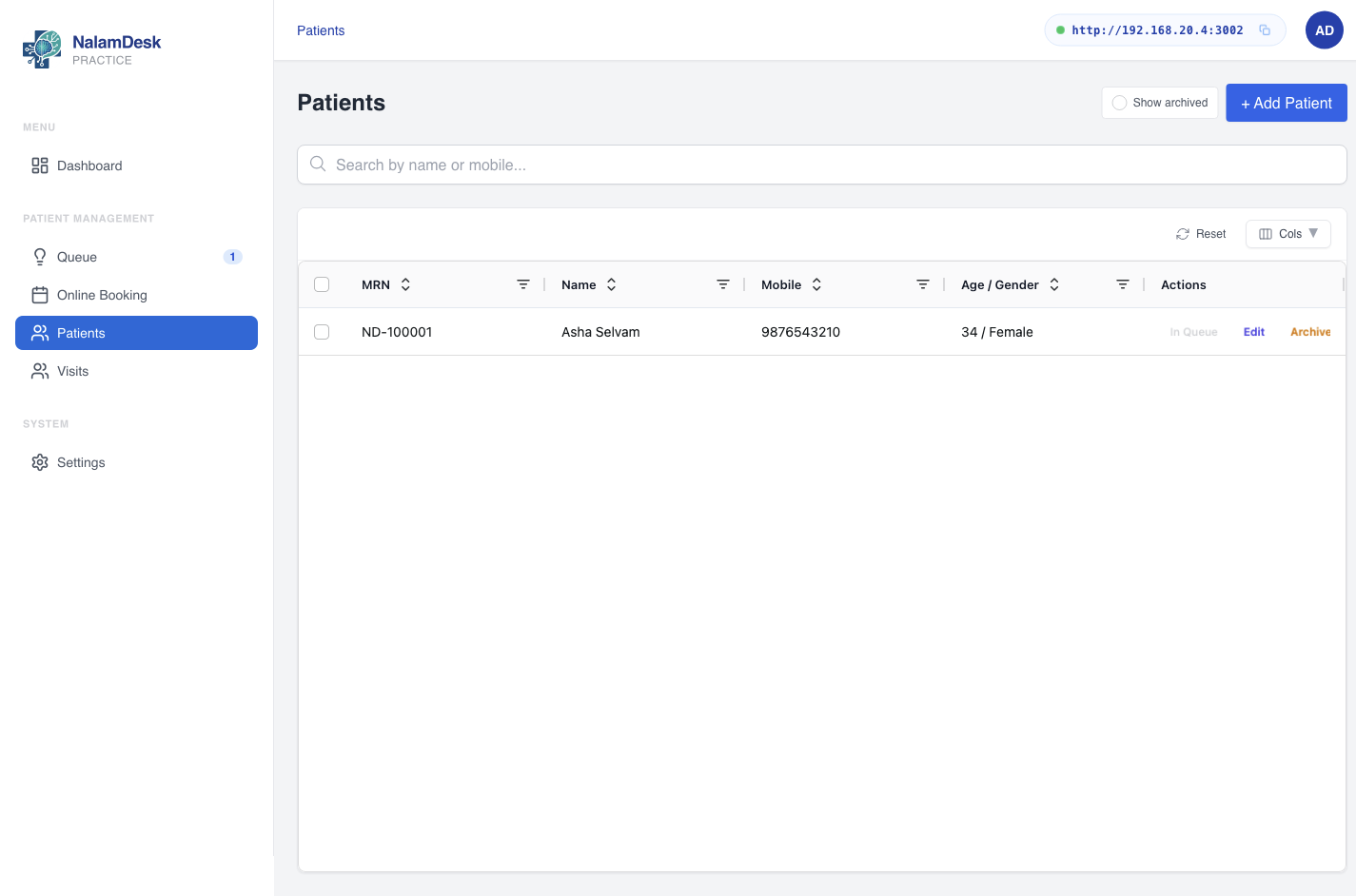 Every chart carries an auto-assigned MRN. The list shows queue state with Edit and Archive actions.
Managing the Queue
The Queue orders patients by clinical urgency first, then check-in time. The dashboard can start the next consultation in that order.
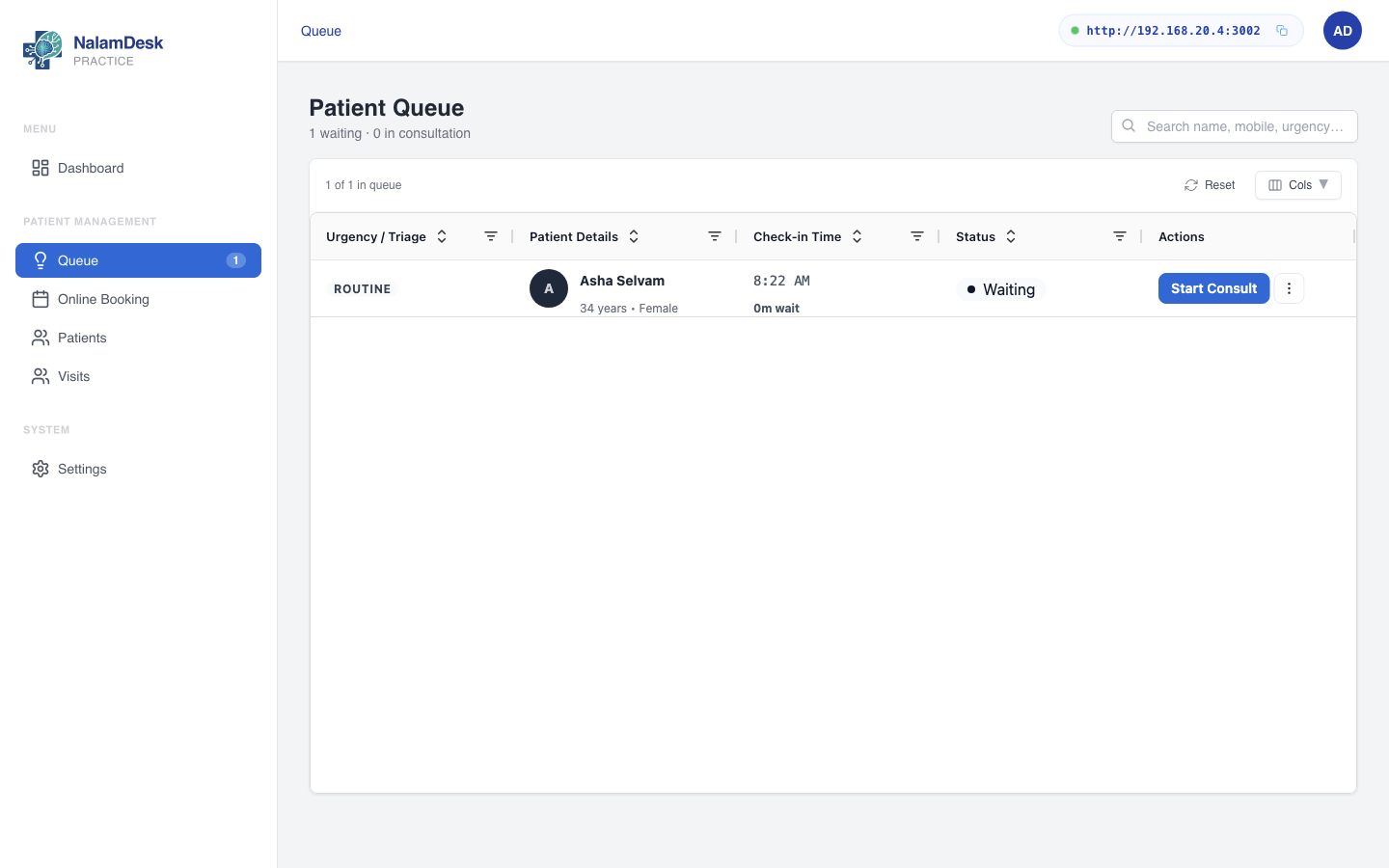 The queue orders by clinical urgency with triage badges, vitals alerts, and Start Consult actions.
4-Tier Urgency Levels
| Tier | UI label | Badge |
|---|---|---|
| Immediate (priority 4) | Immediate (Red) | Red, pulsing |
| Urgent (priority 3) | Urgent (Orange) | Amber |
| Priority (priority 2) | Priority (Yellow) | Blue |
| Routine (priority 1) | Routine (Green) | Gray |
New registrations enter at Routine unless triaged otherwise.
Queue Actions
Each row offers Start / Resume Consult plus a menu with Triage reassessment, Record vitals, and Remove from queue. Nurses see no Remove action. Removing asks for a reason (optional).
Reassessing Urgency & Triage Audit Trail
If a waiting patient's condition changes:
- Open Triage reassessment on the queue entry.
- Select the revised urgency level.
- Enter the mandatory clinical reason. The Update button stays disabled until you do.
- Confirm. The change lands in the permanent triage history with the previous tier, new tier, reason, and your name.
Recording Vitals (Dual-Unit Vitals Engine)
Record vitals for any patient from the queue row or inside the consultation. The form needs at least one measurement:
- Blood Pressure: systolic and diastolic together; systolic must be strictly greater than diastolic.
- Pulse: 30–250 bpm. SpO2: 50–100 %. Respiratory rate: 8–60 per minute. Height: 20–300 cm.
- Temperature: toggle °F (50–115) / °C (10–46.2). Weight: toggle kg (0.5–500) / lbs (1.1–1100). Switching units converts the typed value; the record keeps what you entered plus the standard unit code.
- BMI calculates automatically from height and weight.
- Effective time: when the measurement was taken (defaults to now).
- Amendments: correcting saved vitals creates a new version linked to the old one with your amendment reason. History is never edited in place.
Readings outside clinical thresholds raise a red Abnormal Vitals badge on the queue row, with the details behind it.
Consultation (Doctor)
Doctors and admins open consults; an admin acts as scribe and must pick
the responsible doctor. Only a doctor account finalizes encounters.
- Go to Queue or Dashboard and open a Waiting or In-Consult patient.
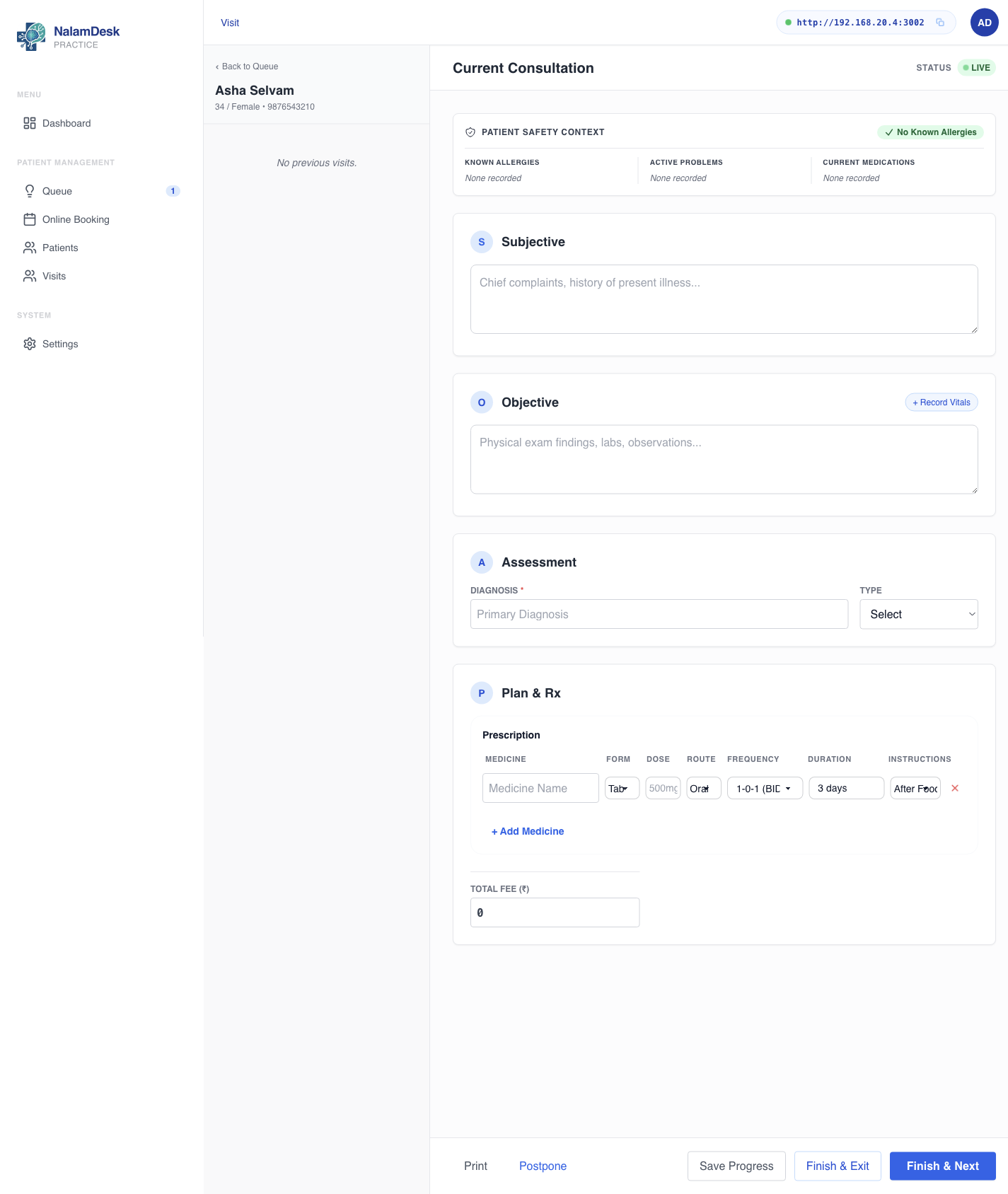 Safety banner, SOAP notes, prescription pad with defaults, fee field, and finish actions.
2. Patient Safety Context Banner: allergy count, active problems,
and current medications across the top. A green No Known
Allergies badge when clear, a red alert with a High Risk flag for
life-threatening allergies.
3. Vitals pill: latest BP, pulse, temperature, SpO2, with an
Amended tag when corrected. Record or edit from here.
4. Subjective / Objective / Assessment / Plan: symptoms, examination
notes, diagnosis (required, Provisional or Final, picked from
the clinic condition catalog with Add-new), then the prescription.
5. Prescription pad: medicine typeahead from the clinic catalog,
form (Tab, Cap, Syrup, Injection, Ointment, Drop), dose, route
(Oral, IV, IM, SC, Topical), frequency (1-0-1, 1-1-1, SOS, STAT…),
duration, and instruction (After/Before Food…). Frequency accepts
Indian shorthand and Latin SIG interchangeably (
Safety banner, SOAP notes, prescription pad with defaults, fee field, and finish actions.
2. Patient Safety Context Banner: allergy count, active problems,
and current medications across the top. A green No Known
Allergies badge when clear, a red alert with a High Risk flag for
life-threatening allergies.
3. Vitals pill: latest BP, pulse, temperature, SpO2, with an
Amended tag when corrected. Record or edit from here.
4. Subjective / Objective / Assessment / Plan: symptoms, examination
notes, diagnosis (required, Provisional or Final, picked from
the clinic condition catalog with Add-new), then the prescription.
5. Prescription pad: medicine typeahead from the clinic catalog,
form (Tab, Cap, Syrup, Injection, Ointment, Drop), dose, route
(Oral, IV, IM, SC, Topical), frequency (1-0-1, 1-1-1, SOS, STAT…),
duration, and instruction (After/Before Food…). Frequency accepts
Indian shorthand and Latin SIG interchangeably (BID saves as
1-0-1); unrecognized text is kept verbatim, never dropped.
Picking a diagnosis with a configured preset fills suggested lines
you can edit first.
6. Allergy Conflict Interceptor: a prescribed drug matching an
active allergy stops the save with the substance, criticality, and
reaction on screen. Change the drug, or type an explicit clinical
override reason to proceed. The reason is stored on the visit.
7. Total Fee (₹): consultation charge for this visit.
8. Footer actions: Save Progress (stay and continue later),
Finish & Exit, Finish & Next (close and open the next
waiting patient), Postpone, Print, and Download PDF in
view mode. Copy to Current pulls a previous visit's content
forward for editing.
9. Prescription QR: printed PDFs carry a scannable QR in the
footer encoding the medicines, doses, routes, schedules, patient,
doctor, and date (compressed, versioned ND1. payload). Any
scanner reading the code recovers the structured prescription
offline. Oversized prescriptions print without a QR rather than an
unscannable one. The QR is a convenience copy: always cross-check
against the printed prescription and the doctor's signature.
9. Complete Consultation: signing stamps the responsible doctor's
name, license number, and specialty onto the visit, marks it
finished, and syncs prescribed medicines into the active medication
list. Only a finished encounter can be billed (see
Daily Collection).