Initial Setup (Vault Creation) 🔐
When you launch NalamDesk for the first time, you will be greeted by the Setup Wizard. This process initializes your local secure database (the "Vault") where all patient data is stored encrypted.
On Linux, install the .deb clinic package (sudo apt install ./nalamdesk-desktop_*_amd64.deb). First-run encryption uses the system keyring (gnome-libsecret). If setup reports ENCRYPTION_UNAVAILABLE, install libsecret-1-0 and gnome-keyring and restart — do not use --password-store=basic.
Step 1: Welcome Screen
You will see a "Welcome to NalamDesk" screen.
- Click "Get Started" to begin.
Step 2: Clinic Information
Enter the details for your practice. These details will appear on:
- Prescription headers.
- Bills and Invoices.
- Patient communications.
Required Fields:
- Clinic Name: (e.g., "City Health Clinic")
- Doctor Name: (e.g., "Dr. Smith")
- Specialization: (e.g., "General Physician")
Step 3: Admin Account Creation
Create the primary Administrator account. This account has full access to all settings.
Fields:
- Username: Choose a unique username (e.g.,
admin). - Password: Must be at least 4 characters long.
- Confirm Password: Re-enter to verify.
Important: If you lose this password, you cannot recover the encrypted data easily without the Recovery Key.
Step 4: Recovery Key 🔑
The system will generate a Recovery Key.
- SAVE THIS KEY: Write it down or save it in a password manager.
- This key is the only way to reset your password if you forget it.
Step 5: Completion
Once verified, you will be redirected to the Login Screen.
- Enter your new credentials to access the Dashboard.
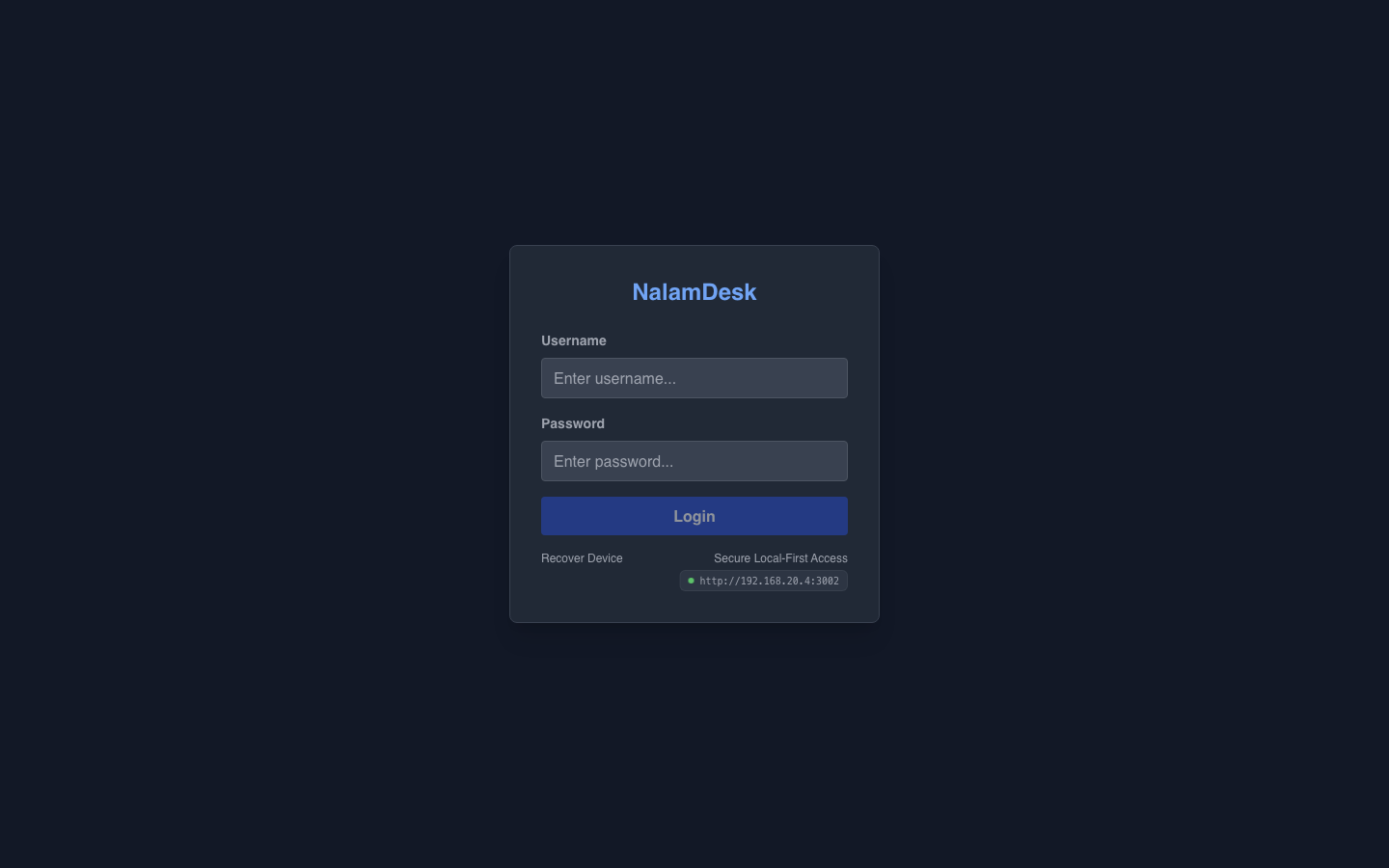 Sign in with your username and password. Logout clears the session.
Troubleshooting
"Application Already Setup"
If you see this message, a database already exists on this machine.
- Solution: logging in with existing credentials. Use the "Forgot Password" flow if needed.